> For the complete documentation index, see [llms.txt](https://docs.lightpost.app/llms.txt). Markdown versions of documentation pages are available by appending `.md` to page URLs; this page is available as [Markdown](https://docs.lightpost.app/add-on-features/child-check-in/child-check-in-stations.md).

# Self-service Check-in Stations

Register and configure a shared tablet for parent self-service child check-in, checkout, new-family registration, and label printing.

A Check-in Station is a shared tablet—such as an iPad—running a focused parent check-in experience in the Lightpost mobile app. It stays registered to your Lightpost account without leaving a staff or member signed in.

Parents can identify their family, see each child's current check-in state, complete the available action, and print approved labels. The station does not show the staff list of currently checked-in children or other administrative child details.

{% hint style="info" %}
Your account must have the **Child Check-in** add-on activated. An account administrator with permission to manage Account Settings must create and configure the station before it can be registered.
{% endhint %}

## Create a station

1. In the Lightpost web app, open **Account Settings > Check-in Stations**.
2. Select **Create Station**.
3. Enter a name that identifies the device or its location.
4. Create and confirm the station's six-digit **Options PIN**.
5. Select a compatible registered printer if this station will print labels.
6. Configure the station's lookup, checkout, registration, printing, and privacy options.
7. Save the station and copy its four-digit registration code.

The registration code can be used once and expires after four hours. It only connects the device to the station you created; parents do not use this code during check-in.

{% hint style="warning" %}
A registered station cannot be paired to a different device or registered again. To replace or move the device, delete the station in Account Settings and create a new one.
{% endhint %}

## Register the tablet

You do not need to sign in to the Lightpost app before registering the station.

1. Open the Lightpost app to the sign-in screen.
2. Tap the lower-left corner three times to open **Device Options**.
3. Select **Register Check-in Station**.
4. Enter the four-digit registration code from Account Settings.

After registration, the app opens the station and remembers it on that device. If you later return to the regular sign-in screen, open **Device Options** again and select **Return to Check-in Station**.

### Update the app before signing in

**Device Options** also includes **Check for Updates**. This lets you download an available Lightpost app update and restart the app without signing in. The same update option is available from the station's locked options screen.

## Choose what parents can use

Each station is configured independently in **Account Settings > Check-in Stations**.

| Setting                                | What it controls                                                                                                                           |
| -------------------------------------- | ------------------------------------------------------------------------------------------------------------------------------------------ |
| **Enabled**                            | Whether this registered device may operate as a Check-in Station. A disabled station tells the user it is disabled.                        |
| **Station open**                       | Temporarily opens or closes parent check-in without deleting or unpairing the station.                                                     |
| **QR code scanning**                   | Shows the always-active scanner for current Lightpost fast check-in and pickup codes.                                                      |
| **Phone lookup**                       | Lets a parent enter the ten-digit phone number stored for a member or a previously entered guardian. No text-message verification is sent. |
| **Username lookup**                    | Lets a parent enter an exact Lightpost username.                                                                                           |
| **Allow “I'm new” registration**       | Lets a new family create a guardian and one or more child check-in profiles.                                                               |
| **Checkout policy**                    | Disables checkout or allows it by pickup QR code, an authorized phone/username lookup, or either method.                                   |
| **Scanner instructions**               | Adds a custom note near the scanner, such as “The camera is behind the device.”                                                            |
| **Labels parents may print**           | Chooses which labels are offered after a family is found.                                                                                  |
| **Print automatically after check-in** | Starts label printing after a successful check-in.                                                                                         |
| **Labels printed automatically**       | Chooses the labels included in automatic printing. This selection is separate from the labels parents may choose themselves.               |
| **Require printer for check-in**       | Prevents check-in when the configured printer is known to be unavailable.                                                                  |
| **Privacy reset**                      | Returns the station to its starting screen after the selected number of idle seconds.                                                      |

You can enable QR scanning, phone lookup, username lookup, and new-family registration in any combination that fits the location. Email lookup is not available.

{% hint style="info" %}
Knowing a phone number or username identifies the family for this workflow; it is not treated as identity verification. Use the station's checkout policy and guardian pickup authorization when you need tighter control over checkout.
{% endhint %}

## Parent check-in and checkout

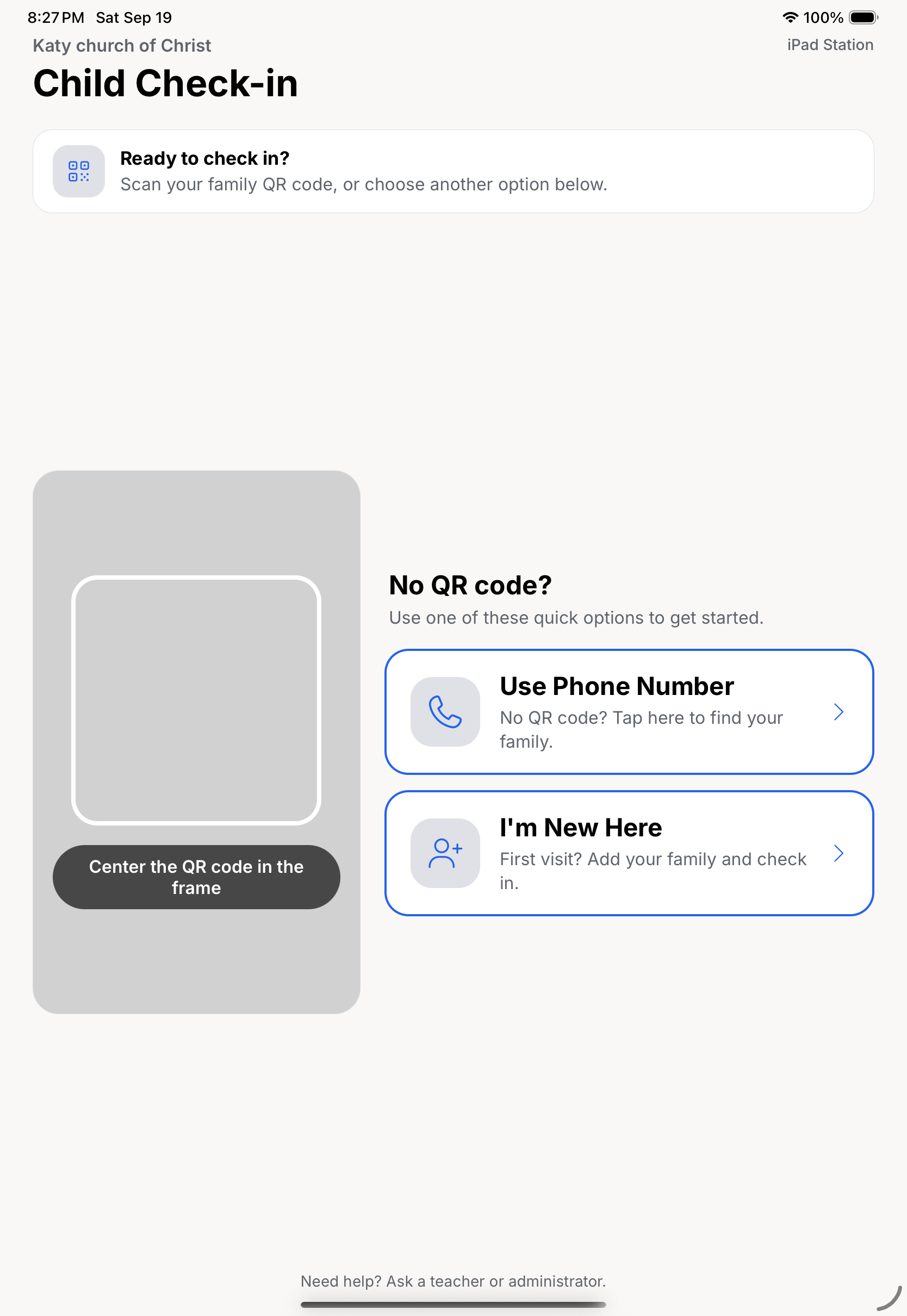
The starting screen keeps the QR scanner active when scanning is enabled and shows the other identification choices configured for the station.

<figure><img src="https://585820897-files.gitbook.io/~/files/v0/b/gitbook-x-prod.appspot.com/o/spaces%2FG1WcD54zAozfrANJAahi%2Fuploads%2Fgit-blob-902e82a3a8facbb10be64a50b33fa8d2aa351275%2Fchild-check-in-station-home.png?alt=media" alt="A Child Check-in Station showing the QR scanner, phone-number lookup, and I&#x27;m New Here options"><figcaption><p>The station keeps scanning ready while making other enabled check-in methods easy to find.</p></figcaption></figure>

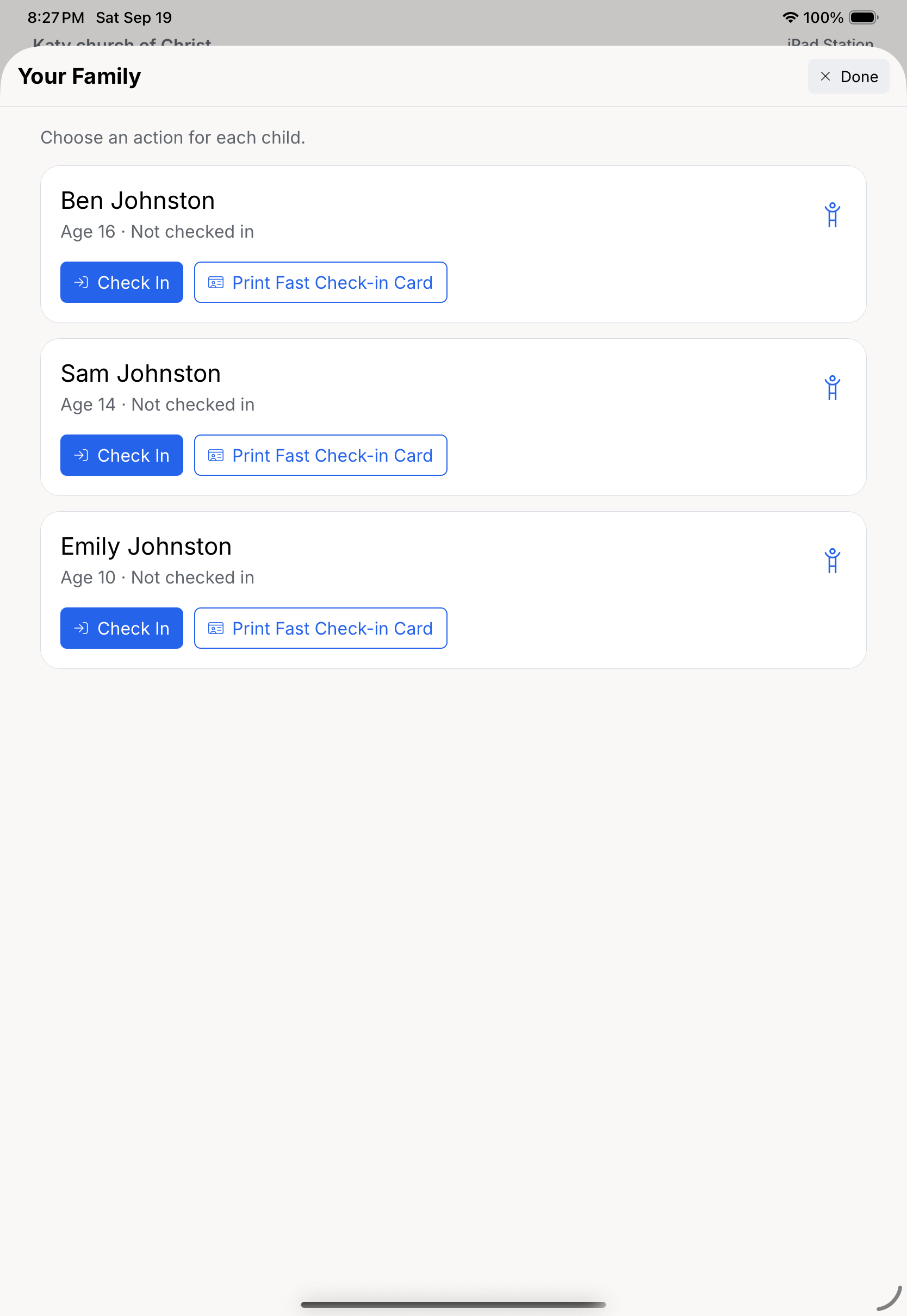
After a QR scan, phone lookup, or username lookup, the station displays the family's children and their current state:

* A child who is not checked in can be **checked in**.
* A child who is already checked in can be **checked out** when the station's checkout policy allows it.
* A family with children in different states can check one child in and another out from the same result.
* Available labels can be printed again without creating another check-in.

The station prevents a second check-in when a child is already checked in. If a phone number or username matches more than one record, the station asks the family to get help rather than choosing a record automatically.

<figure><img src="https://585820897-files.gitbook.io/~/files/v0/b/gitbook-x-prod.appspot.com/o/spaces%2FG1WcD54zAozfrANJAahi%2Fuploads%2Fgit-blob-fd5486f0360830f0a2c87d50830ee92472281a6a%2Fchild-check-in-station-family-actions.png?alt=media" alt="A Check-in Station family result showing children with Check In and Print Fast Check-in Card actions"><figcaption><p>Each child is shown separately with actions based on that child's current check-in state.</p></figcaption></figure>

### Phone lookup

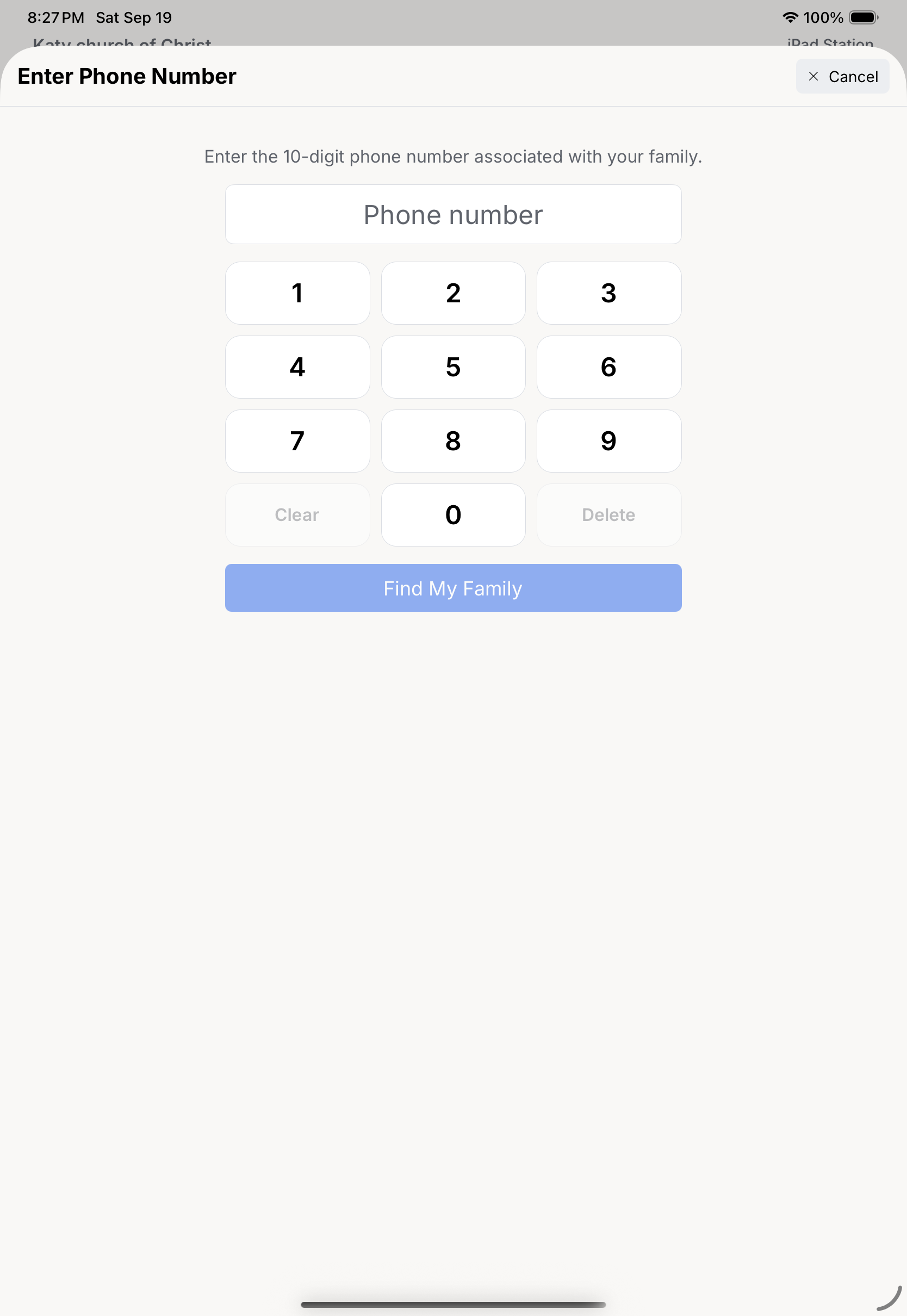
Parents enter the ten-digit phone number associated with their family. No formatting or country code is needed. Lookup is limited to eligible member and guardian phone records within the station's Lightpost account.

<figure><img src="https://585820897-files.gitbook.io/~/files/v0/b/gitbook-x-prod.appspot.com/o/spaces%2FG1WcD54zAozfrANJAahi%2Fuploads%2Fgit-blob-f1b710674b45354efab8d4ea60bf7a410b5e6a7d%2Fchild-check-in-station-phone-lookup.png?alt=media" alt="The Check-in Station phone-number screen with a large on-screen number pad"><figcaption><p>The station provides a large number pad designed for quick use on a shared tablet.</p></figcaption></figure>

### New families

When **Allow “I'm new” registration** is enabled, a parent can enter guardian information and add one or more children. The guardian is not opted into text messages automatically. Pickup authorization starts turned off, but the person registering can choose to allow that guardian to pick up the children.

If the phone number already belongs to a family in the account, the station does not create a duplicate. The parent can return and use phone lookup instead. New-family registration does not send a text-message verification code.

## Printing labels

The station supports three label choices:

* **Child label** for the child to wear. The child's label does not contain the pickup QR code.
* **Parent label** for matching the parent or guardian at pickup.
* **Fast check-in card** for future family check-ins.

**Labels parents may print** and **Labels printed automatically** are intentionally separate. For example, a station can automatically print child and parent labels after check-in while still offering a fast check-in card on request. If automatic printing is enabled, select at least one automatic label.

When printing fails after check-in, the check-in remains complete and the station reports the printing problem so the labels can be tried again. Enable **Require printer for check-in** if the station should stop before check-in whenever the printer is known to be unavailable.

See [Lightpost Print](/other-features/lightpost-print.md) for registering printers and choosing between local and Internet Printing.

## Open Station Options on the tablet

Station Options are intentionally hidden from the parent workflow.

1. From the station's main screen, tap the lower-left corner three times.
2. Enter the station's six-digit Options PIN.

The PIN allows a trusted attendant to:

* Select a compatible printer registered to the same account.
* Change **Labels parents may print**.
* Turn automatic printing on or off.
* Change **Labels printed automatically**.
* Return to the regular Lightpost sign-in screen without unregistering the station.

The PIN does not allow someone at the tablet to change identification methods, checkout policy, new-family registration, printer requirements, or the other risk-bearing settings. Those remain in Account Settings.

### Refresh station settings

After changing a station in the web app, tap the hidden upper-right corner of the station screen once. A notification confirms whether the latest station configuration was refreshed or could not be loaded.

The station also clears family results after its configured idle timeout and whenever the app moves to the background.

## Troubleshooting

### The registration code does not work

Confirm that all four digits were entered before the code's four-hour expiration. A code cannot be reused after it registers a device. If the registered device must be replaced, delete the station and create a new one.

### A web setting is not showing on the tablet

Tap the hidden upper-right corner of the main station screen once to refresh the configuration. The app displays a success or failure notification.

### A family cannot be found

Confirm that the lookup method is enabled and that the phone number or exact username belongs to the same Lightpost account. A duplicate phone number or username cannot be selected automatically and requires help from an attendant.

### Check-in worked, but labels did not print

Use **Print Labels** from the family results to try again. Then unlock Station Options to confirm the selected printer, or review the registered printer's connection in Account Settings. If printing must succeed before check-in, enable **Require printer for check-in**.