> For the complete documentation index, see [llms.txt](https://docs.lightpost.app/llms.txt). Markdown versions of documentation pages are available by appending `.md` to page URLs; this page is available as [Markdown](https://docs.lightpost.app/core-concepts/groups/sms.md).
# Texting (SMS)
Lightpost allows your congregation to text groups for quick, one-way communication from a dedicated toll-free number to the mobile numbers on people's profiles.
### What is a text message?
* Text messages are a way to send SMS messages to people in a group that have a mobile phone on record.
* SMS messages are different than *mobile notification*s, which users can receive for various things (worship assignments, group posts, etc) and require the member be logged into the Lightpost mobile application to receive them.
* SMS messages do have an extra cost associated with them due to the requirement of using a third party service to send SMS messages.
### Special Notes About SMS
* SMS messages can contain up to 160 characters from the [GSM-7 character set](/core-concepts/groups/sms/text-encoding.md).
* SMS messages **cannot** contain images.
* SMS messages will show up as a different sender on some devices.
* Depending on the carrier and network, the sender number shows up as:
* "`+1 (123) 555-1234`" for an **SMS**
* "`1235551234`" for an MMS
* This can appear on a device as two different senders. This is normal and expected due to carrier and network patterns.
* Group texting is one-way. If someone replies to a group text, Lightpost emails the reply to the person who sent the most recent text they received.
### How are text messages counted?
* Lightpost counts a text message as every 160 characters sent to each users' unique phone number.
* Lightpost automatically filters out duplicate numbers and duplicate recipients.
* If multiple people have the same phone number, only one message will be sent.
* If a user has multiple mobile phone numbers, a message will only be sent to their primary number.
### First message confirmation
When a text message is sent to a user from Lightpost for the first time, Lightpost sends a total of **3 text messages** to inform the user about why they're receiving a text message from this number.
These three messages will include information such as:
* The first message let's the user know what congregation text messages from this phone number are coming from.
* The second message informs the user how to opt-out of and opt-in to future messages.
* The third message is the first message you are sending to the group.
These messages only happen one time for each users' phone number, regardless of what group the SMS comes from.
### How to send an SMS message
#### **STEP 1**
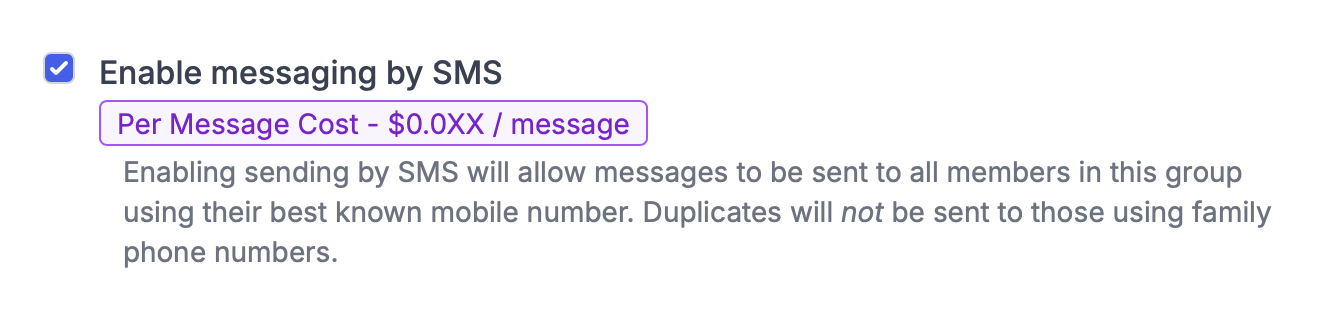
* In the Admin, open the group's "**Messaging**" tab, select the "**Enable messaging by SMS**" option, and click "**Save Changes**".
#### **STEP 2**
1. Open **Group Roles** and enable **Authorized Sender** for each person who may send an SMS message.
1. Only people in the group are listed. Add the person on the group's **Members** page first if needed.
2. Authorized Sender is separate from Group Admin and Group Post Admin. Account Admins must also be explicitly authorized for the group.
See [Group Roles and Event Permissions](/core-concepts/groups/group-roles.md) for more about Authorized Senders.
#### STEP 3
Authorized Senders can send from the Admin, the member web app, or the mobile app.
**From the Admin**
1. In the Admin, find the group you wish to message, and click on the group.
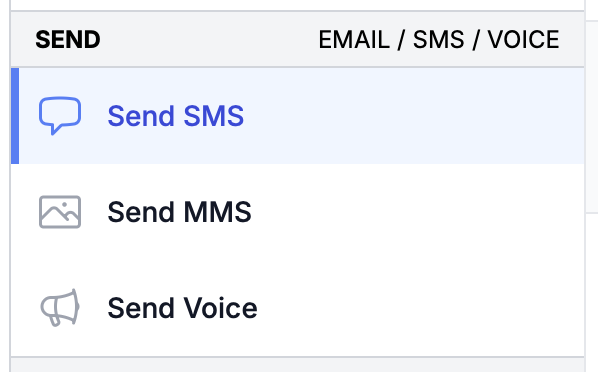
2. Go to the **"Send SMS"** section. It appears once SMS is enabled for the group.
3. Enter the message you wish to send. The counter below the message shows how many characters are left.
4. To send it later, select "**Schedule for later**" and choose a date and time.
5. Click "**Send SMS**".
6. A cost estimate is provided for you at the bottom of the page.
Sending from the Admin requires the **Manage Groups** admin permission in addition to being an Authorized Sender.
**From the member web app**
1. Go to **Groups** and open the group.
2. Select **Messaging**, then the **SMS** tab.
3. Enter the message, optionally select "**Schedule for later**", and click "**Send SMS**".
**Messaging** only appears for Authorized Senders who are members of the group, and the group must appear in their **Groups** list. A group is listed there when it has Group Posts or a Group Forum, a group calendar, or video calls turned on. For any other group, send from the Admin or the mobile app.
**From the mobile app**
Authorized Senders can also send and schedule SMS messages from the Lightpost mobile app, including for groups they are not a member of.
### How to schedule an SMS message
Select "**Schedule for later**" when writing the message, then choose the date and time. Times use your account's time zone, and the time can be set between 6:00 AM and 10:00 PM.
Scheduled messages can be cancelled any time before they are sent:
* **In the Admin** — open the group's **Scheduled** section and click **Cancel**. The section appears when the group has a scheduled message.
* **In the member web app** — open the group's **Messaging** page and use the **Scheduled** tab.
### Troubleshooting
* **"Send SMS" is missing in the Admin** — SMS is not enabled for the group. See Step 1.
* **"User is not an authorized sender for SMS messages."** — you are not an Authorized Sender for this group. See Step 2. This applies to Account Admins as well.
* **"Messaging" is missing in the member web app** — you are not an Authorized Sender for the group, you are not a member of it, or SMS, MMS, and voice are all turned off for the group.
### How to view SMS history
1. In the Admin, find the group you wish to message, and click on the group.
2. Go to the **"Message History"** section.
3. Click on any past message to view details about who received the text messages and any errors or failures.
Scheduled and cancelled messages are listed in Message History as well.